HomeScanner App
Install and log in to the Scanner App
Put the Scanner App on a phone or tablet and sign in as a cashier.
The Scanner App is a web app. There is nothing to download from an app store. You open a link, sign in, and add it to the home screen.
What you need#
- A phone or tablet with a camera and an internet connection.
- Your login: the email and password the owner created for you. Owners can also log in with their own account. See Add a cashier.
Steps#
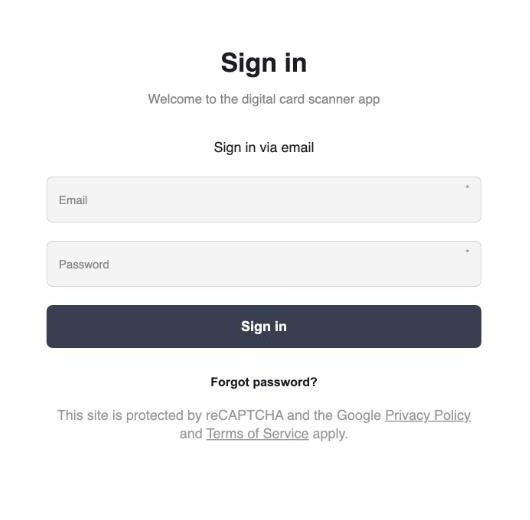
- On the phone or tablet, open reward.khetta.com/scanner-app in the browser.
- Under Sign in via Email, enter your email address and password.
- Tap Sign In.
- You land on the Scanner App home screen. It shows who you are logged in as, a Scan button and a Search customers button.
Put it on the home screen#
Adding the Scanner App to the home screen gives you an icon you can tap like any other app.
- iPhone or iPad (Safari): tap the Share button, then Add to Home Screen.
- Android (Chrome): tap the menu (three dots), then Install app or Add to Home screen.
From then on, open the Scanner App from that icon.
Allow the camera#
The first time you tap Scan, the browser asks for permission to use the camera. Choose Allow. Without it the app cannot read card QR codes.
Logging out#
Open the menu (three lines, top right) and tap Logout. Always log out on a shared device when your shift ends.