HomeQuick guides
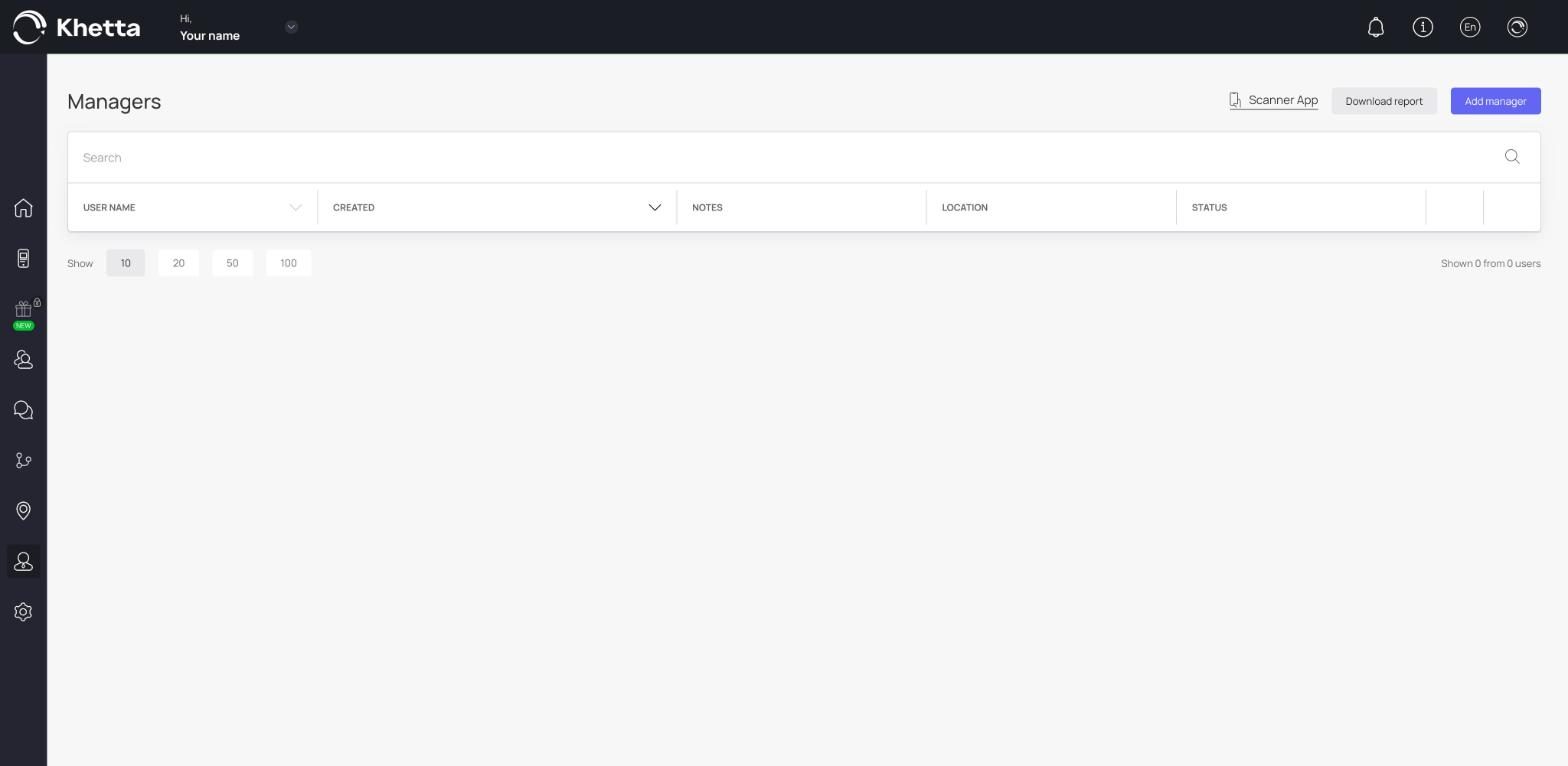
Add a cashier
Give a team member their own login for the Scanner App.
Each cashier should have their own login. That way every transaction shows who did it.
Where: Dashboard, Managers in the left-hand menu.
Steps#
- Open Managers and click Add manager.
- Enter the cashier's full name, email and phone number.
- Set a password and type it again to confirm.
- If you have more than one location, choose the location they work at.
- Add anything useful in Notes, for example the shift or branch.
- Leave Send access to email switched on if you want them to receive their login details by email. Switch it off if you will give them the details yourself.
- Save.
The cashier now appears in the Managers list and can log in to the Scanner App at reward.khetta.com/scanner-app.
Change or remove a cashier#
- Edit: click the pencil icon at the end of their row, change what you need, and save.
- Remove: click the cashier's name, go to the Information section, click Delete at the bottom and confirm with Remove.
Remove cashiers as soon as they leave your business.
See what a cashier has done#
Click a cashier's name in the list. Their profile shows their name, registration date, status, location, number of transactions, date of the last transaction, and a table of their latest transactions.
See also: Managers for the full section.